
Brick won't scan
Please confirm that you see a “Ready to Scan” popup when you tap the center icon or "Tap or Hold to Brick" on the Brick app
Note that you must open the Brick app in order to Brick and Unbrick your device
Make sure you've turned NFC capabilities on in your phone's Settings - To do this, search NFC in your Settings and toggle it on if it isn't
Update to the latest version in the App or Play Store
Restart your device
If your Brick still isn't scanning after completing the above:
Try tapping the part of your phone that has the NFC reader when scanning. Your device will show you where the NFC reader is:
For Samsung devices - Go to Settings > Connections > NFC and contactless payments
For Pixel devices - Settings > Connected devices > Connection preferences
For other devices - search for NFC in your device settings
If you're still having trouble finding the right spot:
As you're scanning, try these top tips that have worked for our Android users:
If you have a thick case on your phone, try removing it
Try hovering over the Brick instead of directly tapping it
Try using the thin side of the Brick
Try taking the Brick off the fridge
Device | NFC Reader Location |
Samsung Galaxy S21 / S22 / S23 / S23 FE / S24 / S25 standard Go to Settings > Connections > NFC and contactless payments and your device will show you a diagram of where your NFC antenna is located | Usually top-center on the back, near the camera
|
Samsung Galaxy Ultra Go to Settings > Connections > NFC and contactless payments and your device will show you a diagram of where your NFC antenna is located | Usually top-center on the back, near the camera
|
Google Pixel 6, 7, 8 Go to Settings > Connected devices > Connection preferences and your device will show you a diagram of where your NFC antenna is located | Top-middle region under the camera
|
Google Pixel 9, 10 Go to Settings > Connected devices > Connection preferences and your device will show you a diagram of where your NFC antenna is located | Top-middle region under the camera
|
OnePlus | Right-back near the camera
|
Motorola | Right-back near the camera
|
Sony Xperia | Top-center on the back, near the camera
|
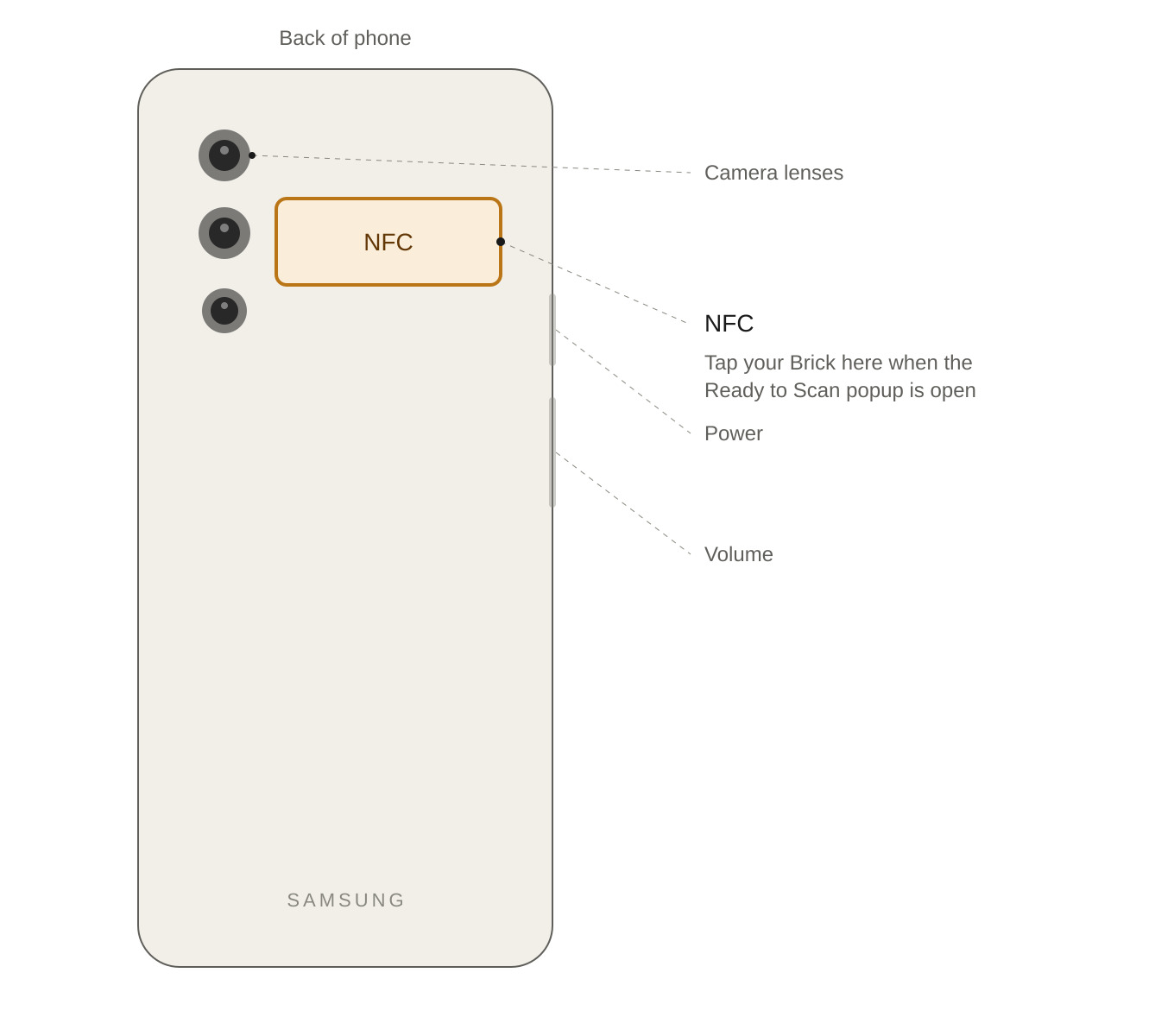
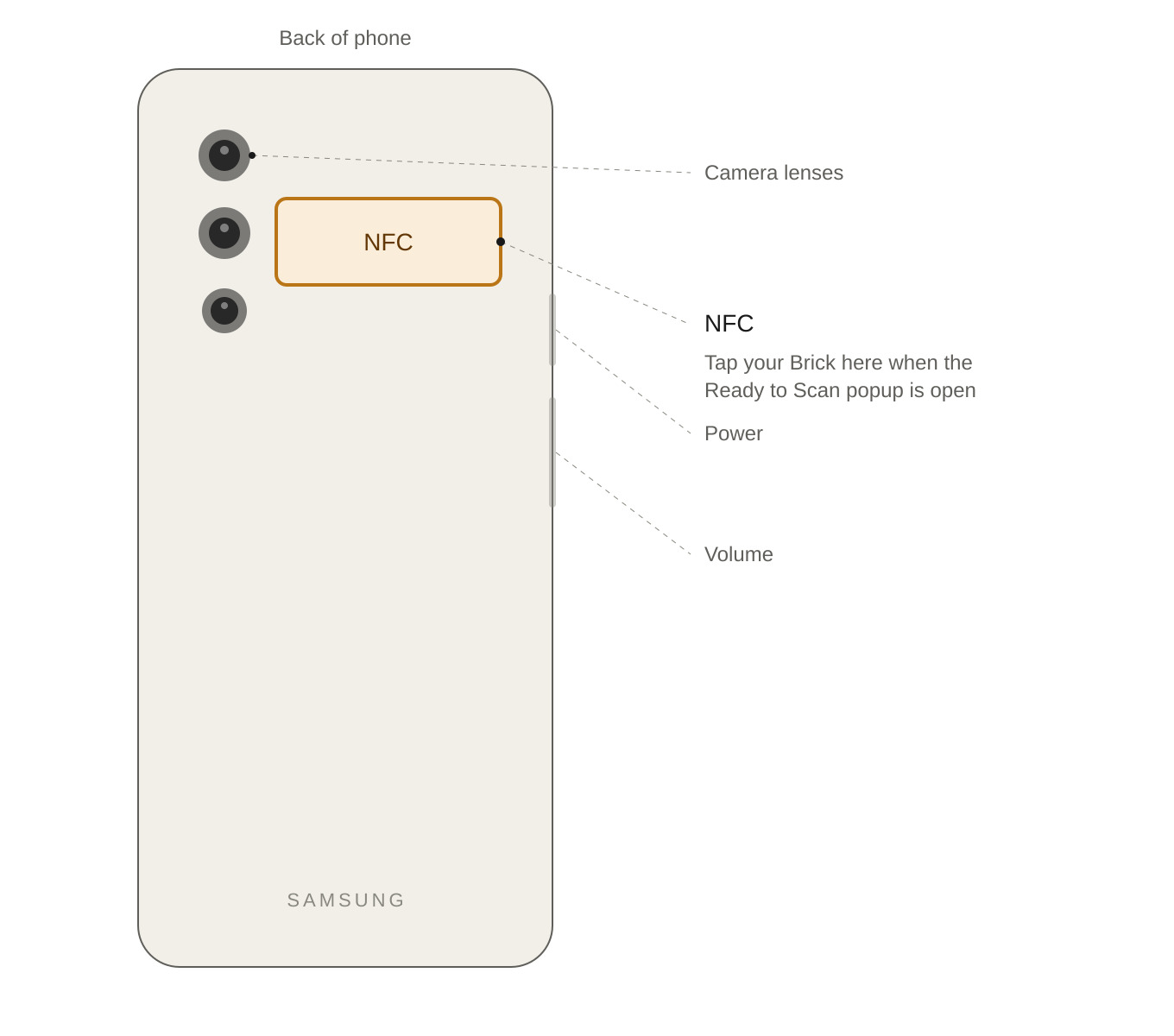
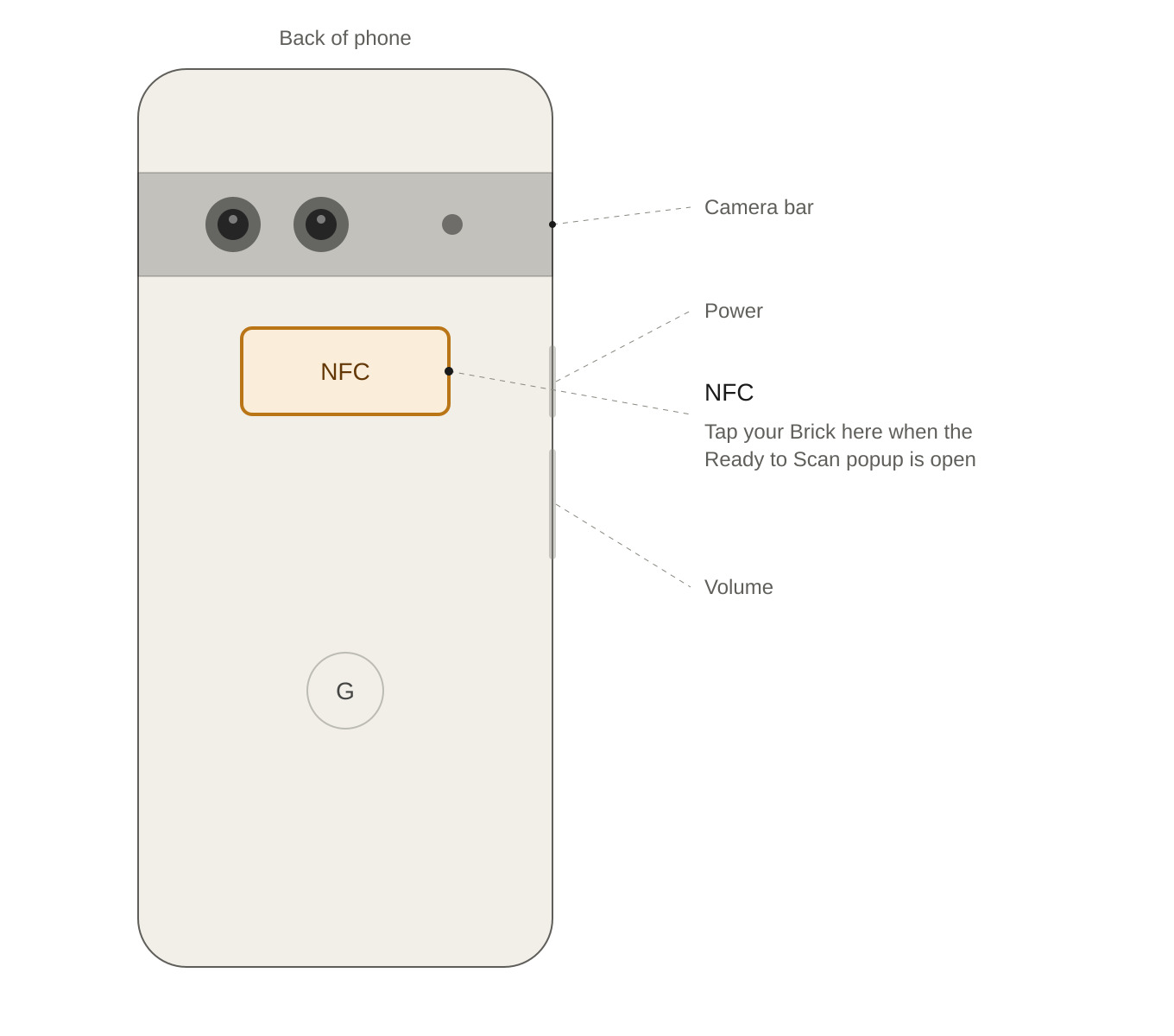
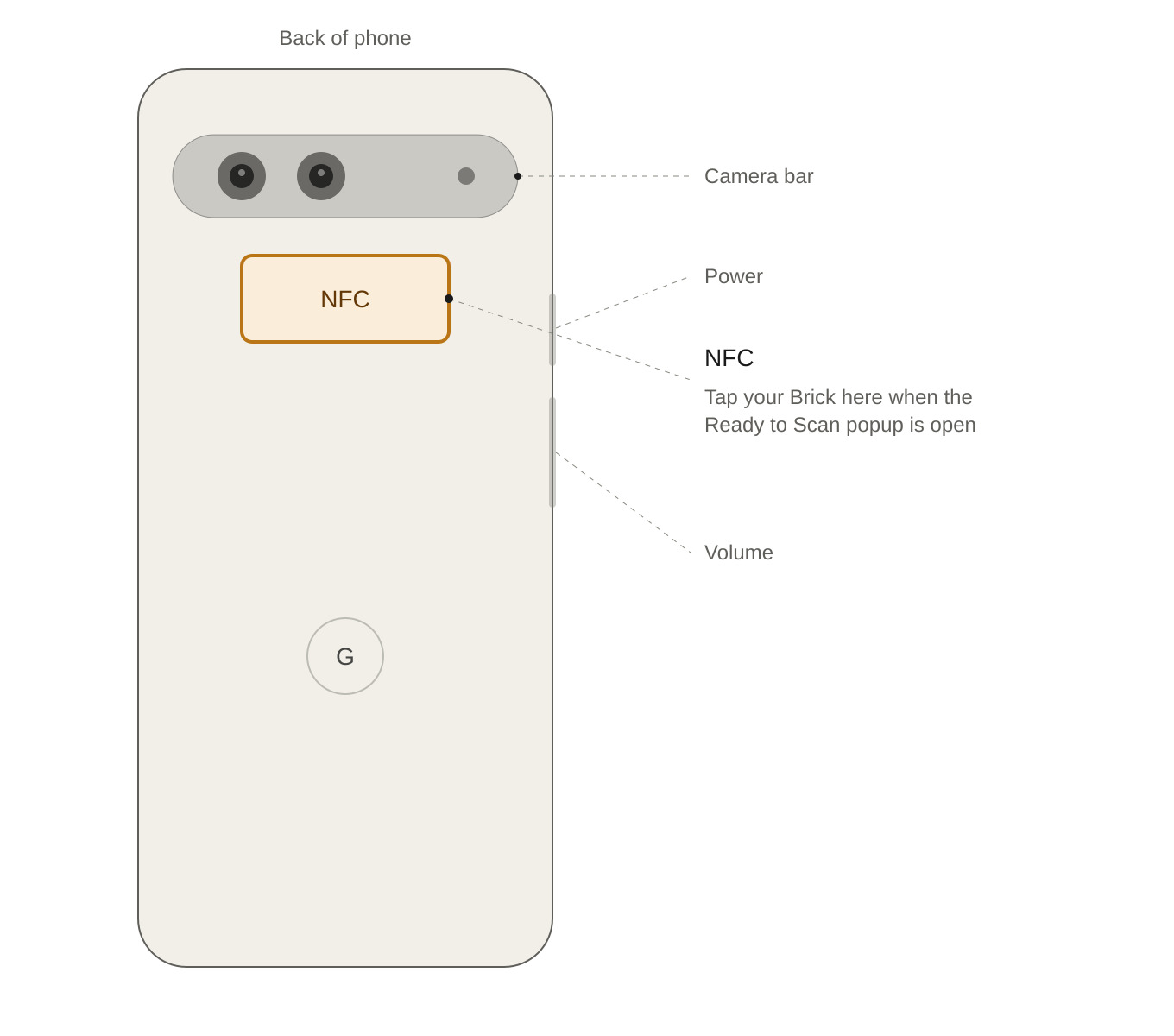
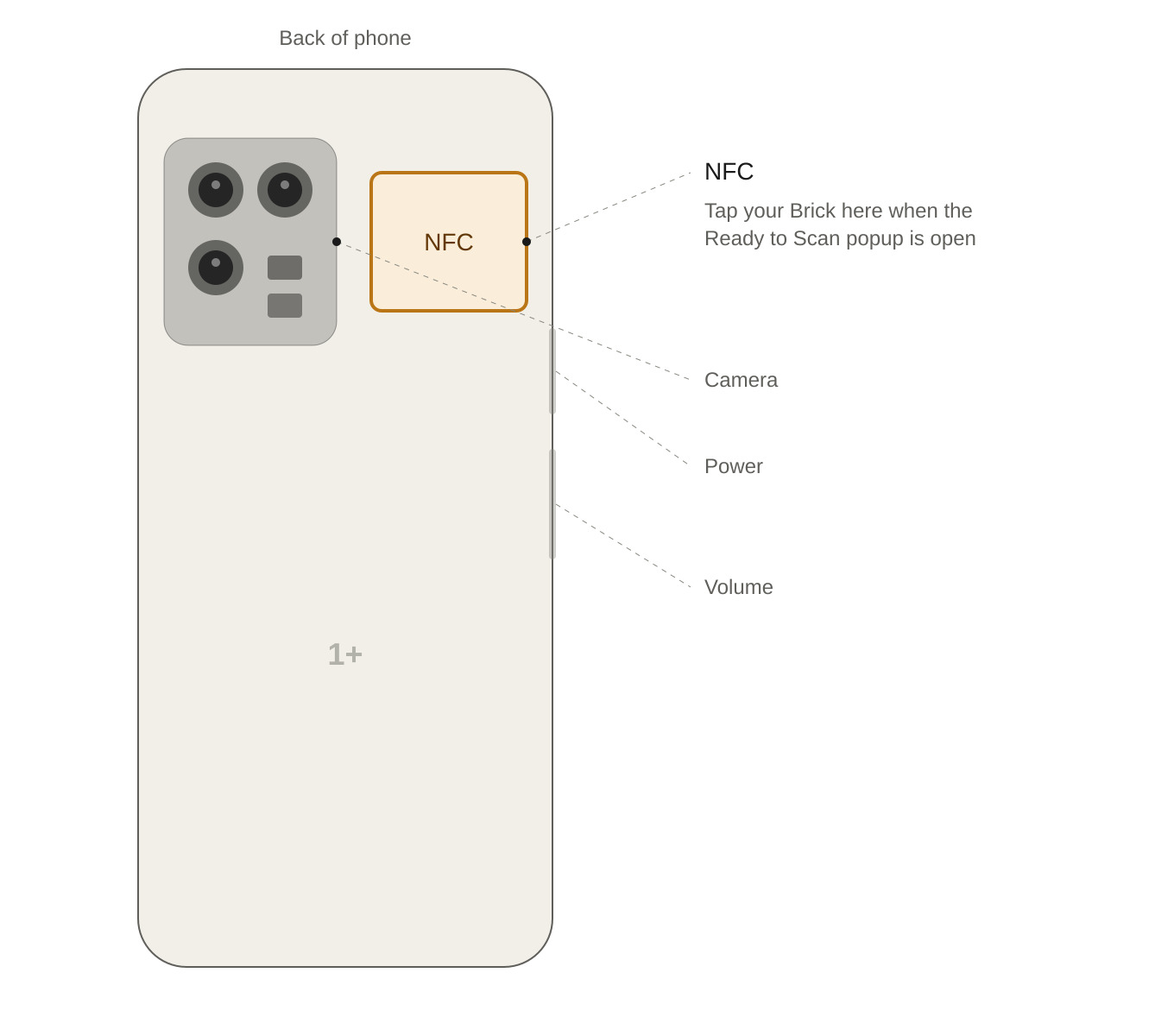
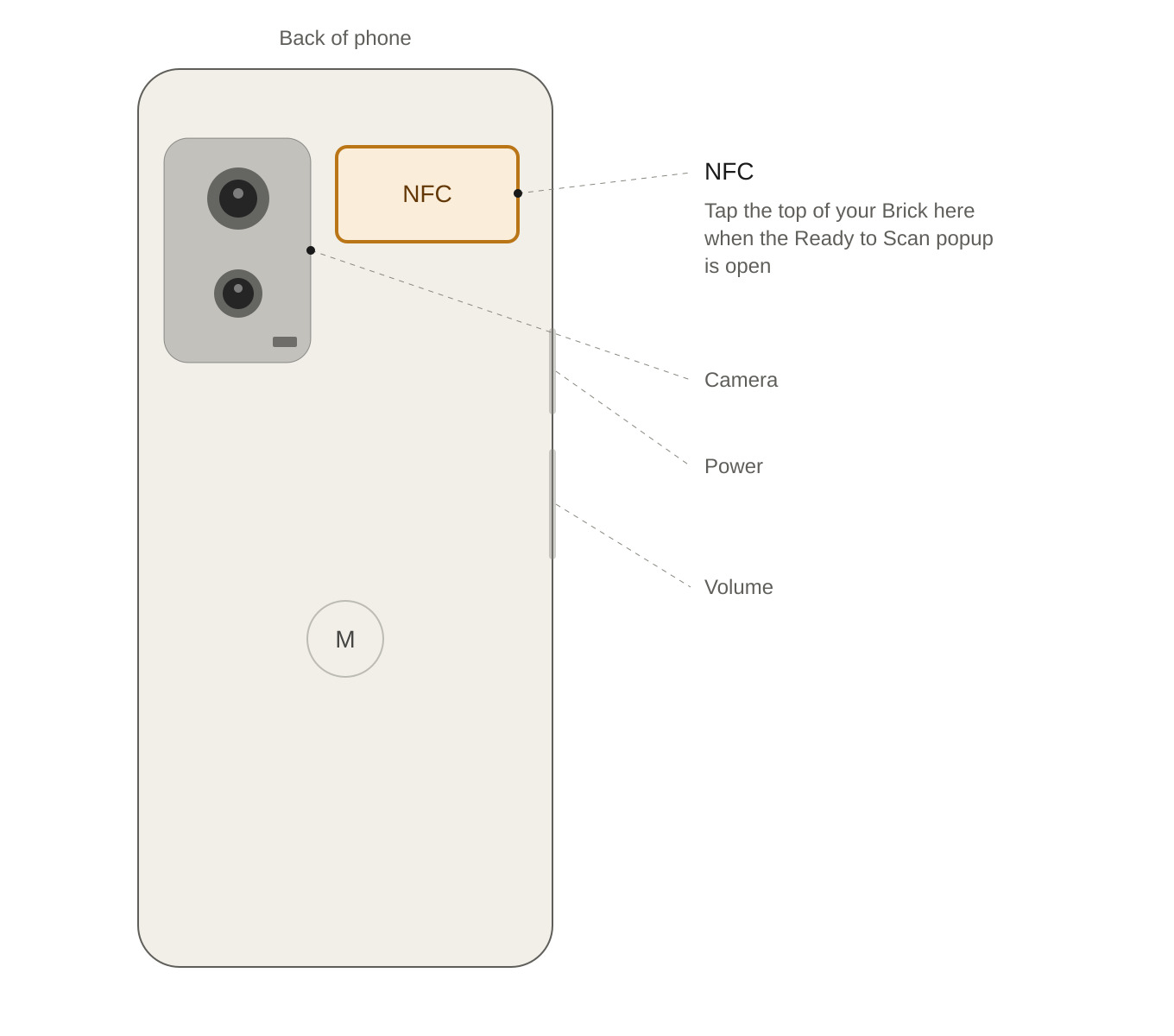
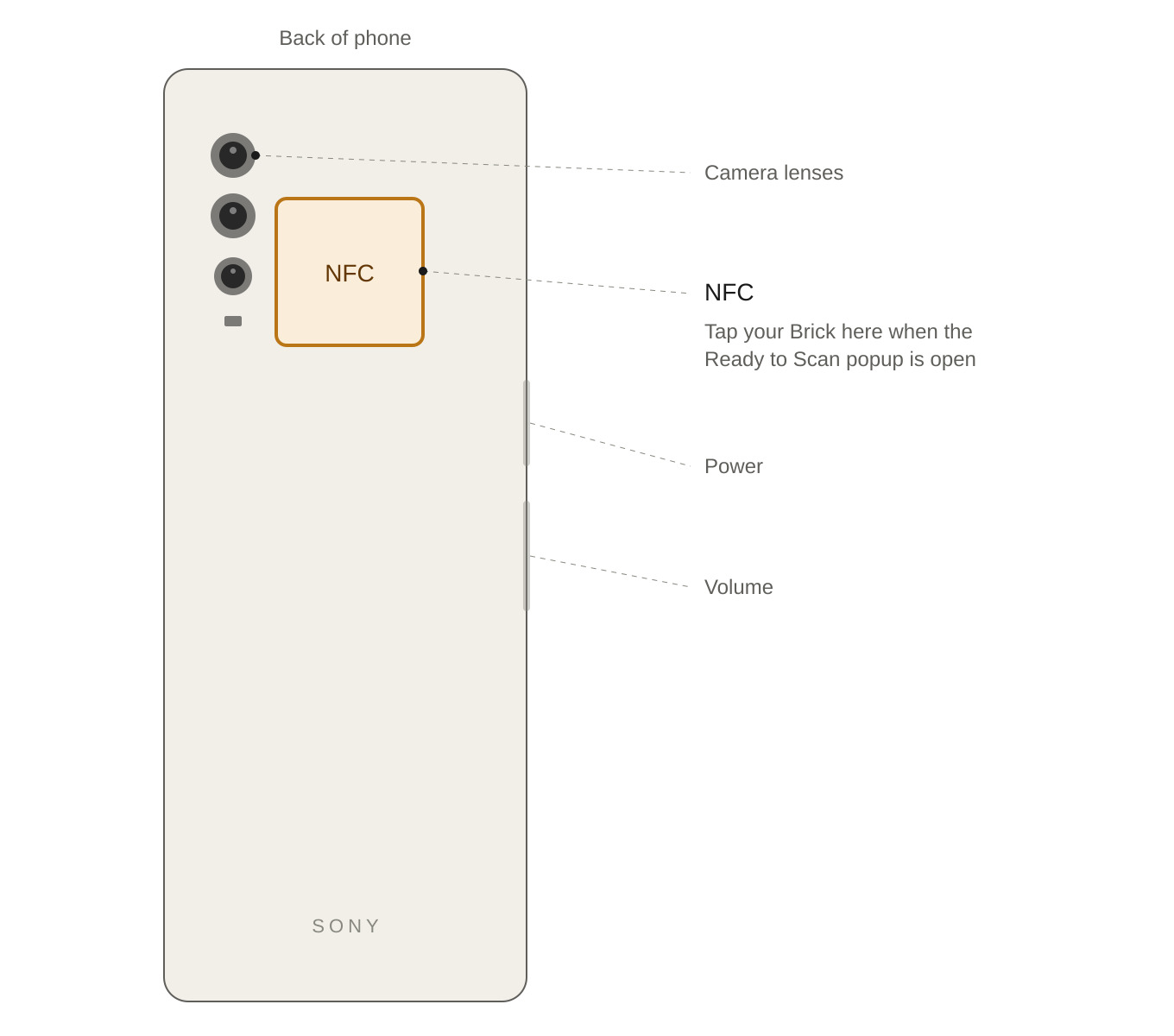
If it still doesn’t scan, we’ll need to do a quick check using a free app called NFC Tools. You can download it on the Android Play Store. Once installed, tap ‘Read’ and try scanning your Brick. You may have to scan the Brick up to 3 times for the below information to appear.
Once you’ve done so, please email hello@getbrick.com with the following information.
Does NFC Tools successfully scan the Brick?
Does it say Yes or No next to Writable?
(iPhone) Do you see a section labeled ‘Record 1 - Text’?
(Android) Do you see a section labeled ‘Record 1 - UTF-8 ()’?
Still need help?: Email us at hello@getbrick.com and we'd be happy to help