
Blocking Apps with Shortcut
Settings require a Shortcut to block. You can also use this shortcut for any apps that aren't being blocked reliably.
Step-by-step instructions:
Download the Shortcuts App in the App Store - confirm you have the most updated Shortcuts version
Open the Shortcuts App
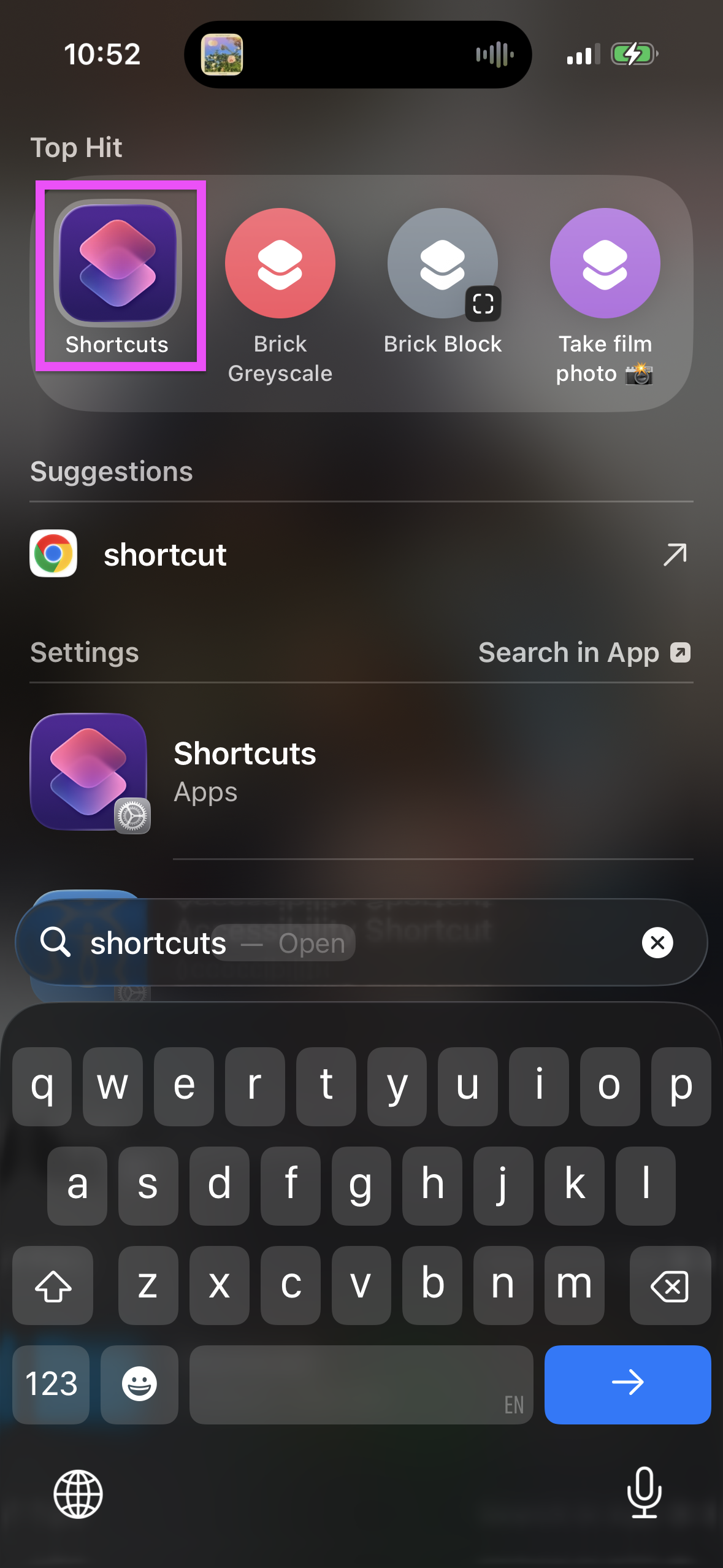
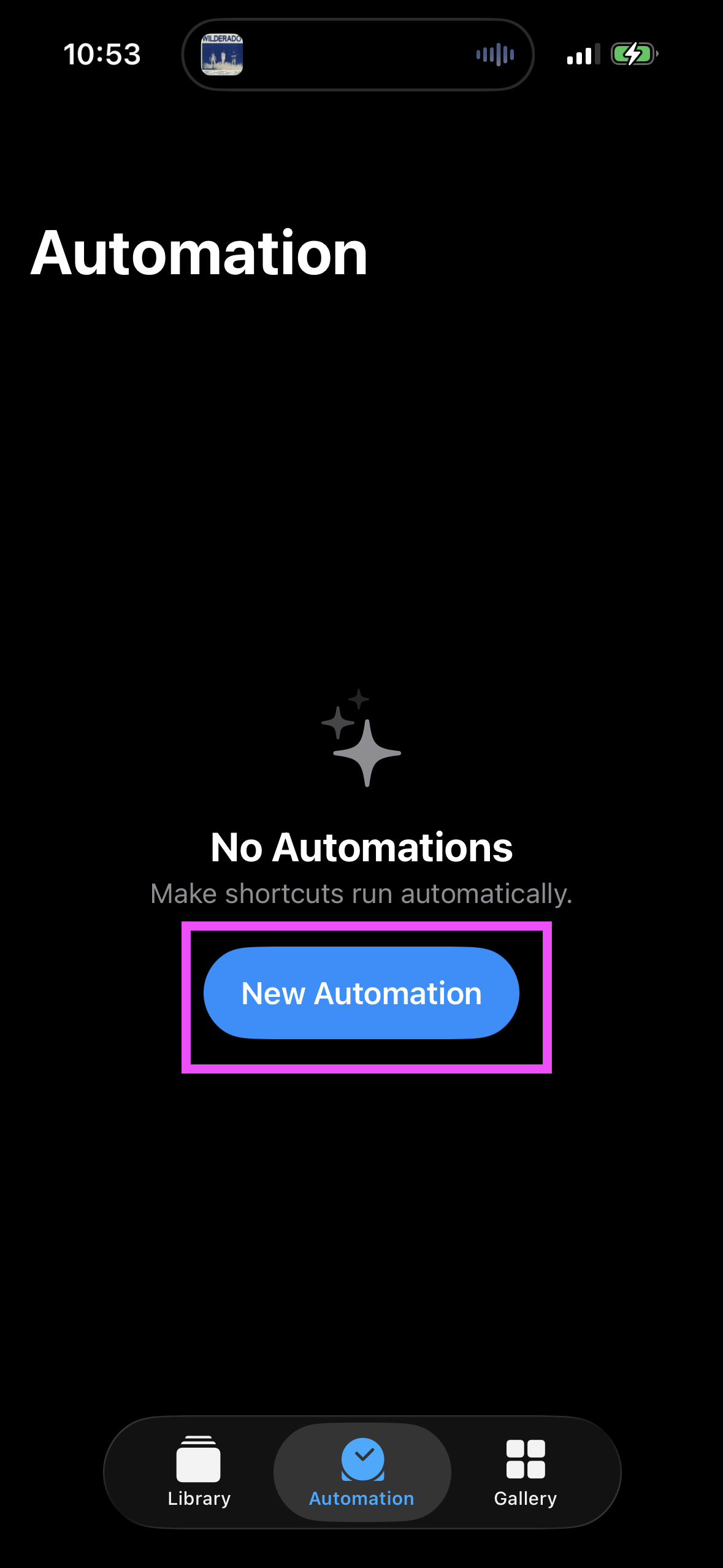
Switch to the Automation tab and tap to create a Personal Automation
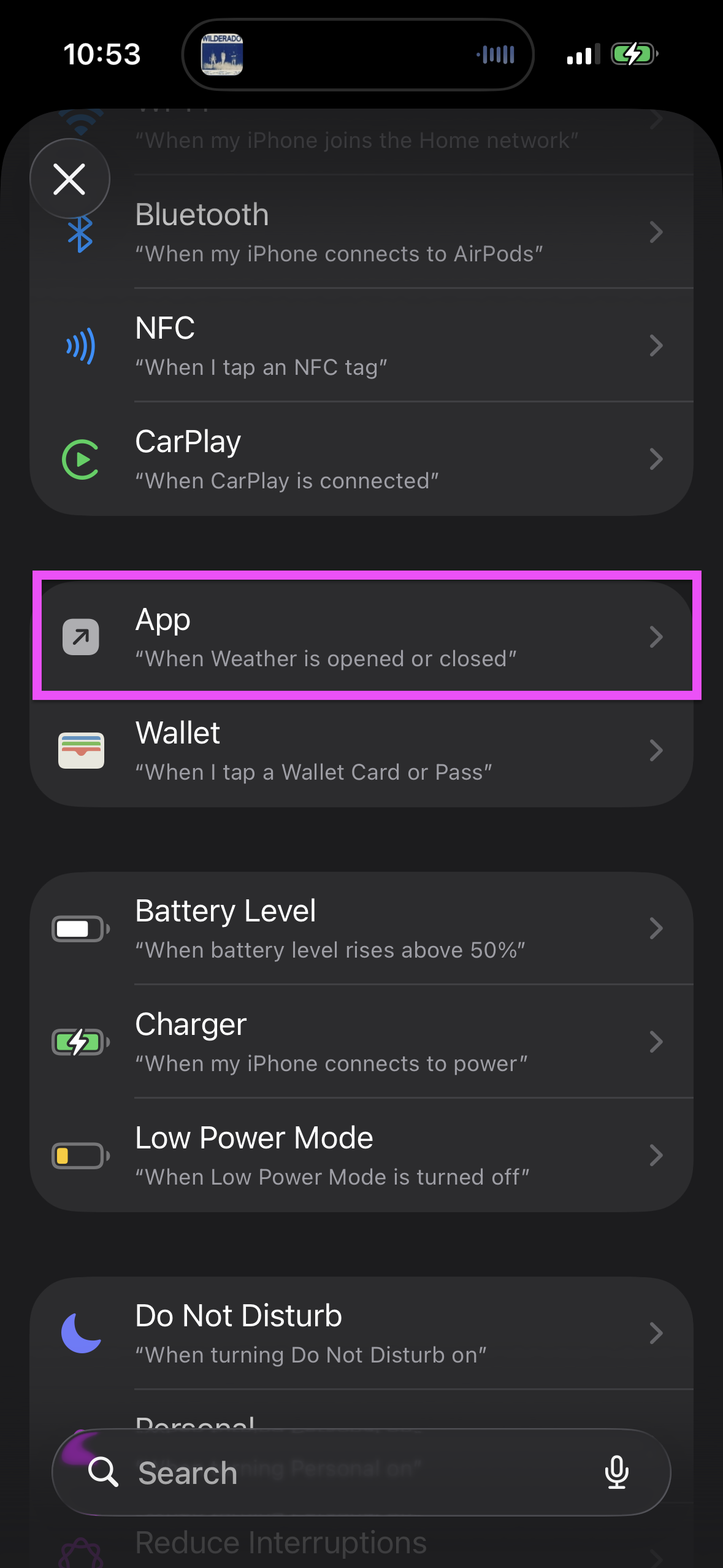
Select App
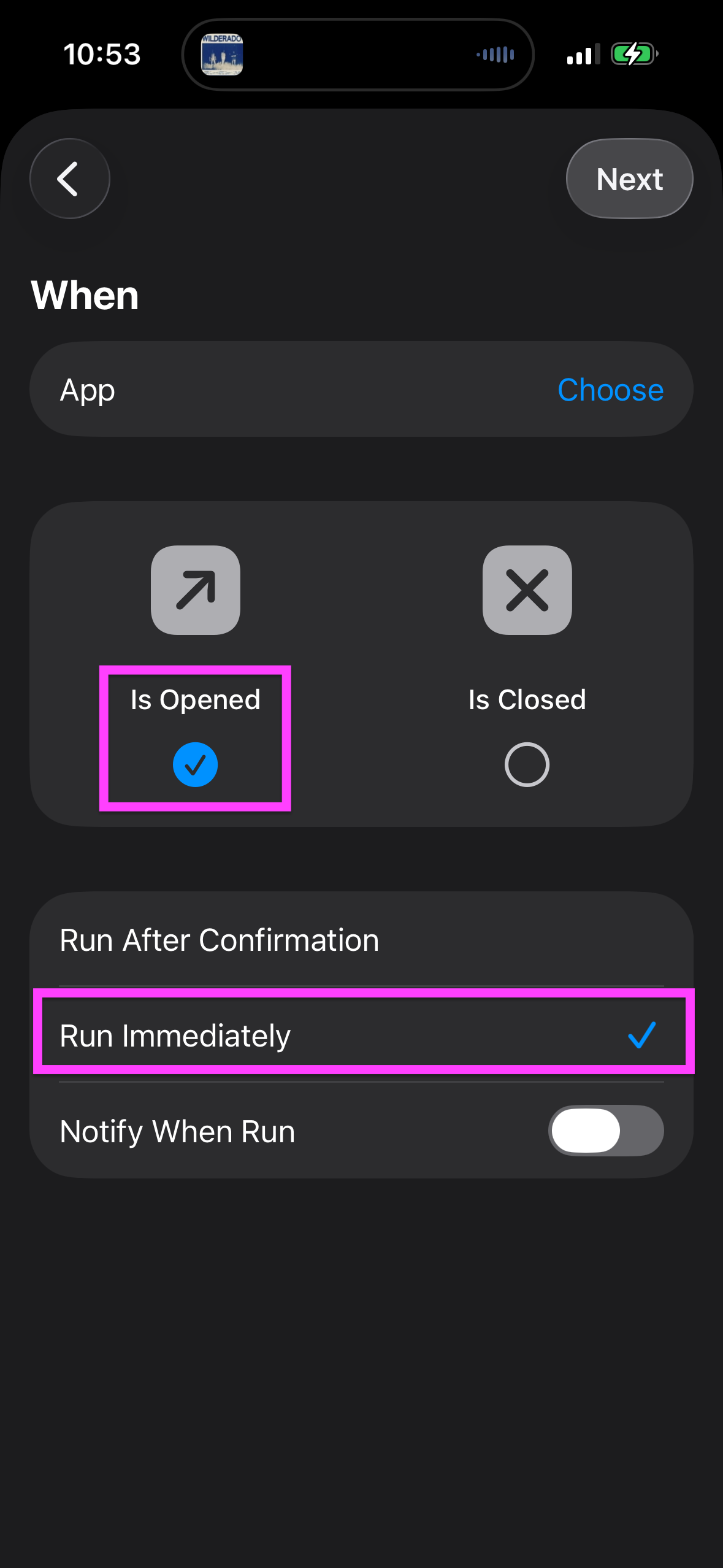
Select Is Opened and Run Immediately, then press Choose
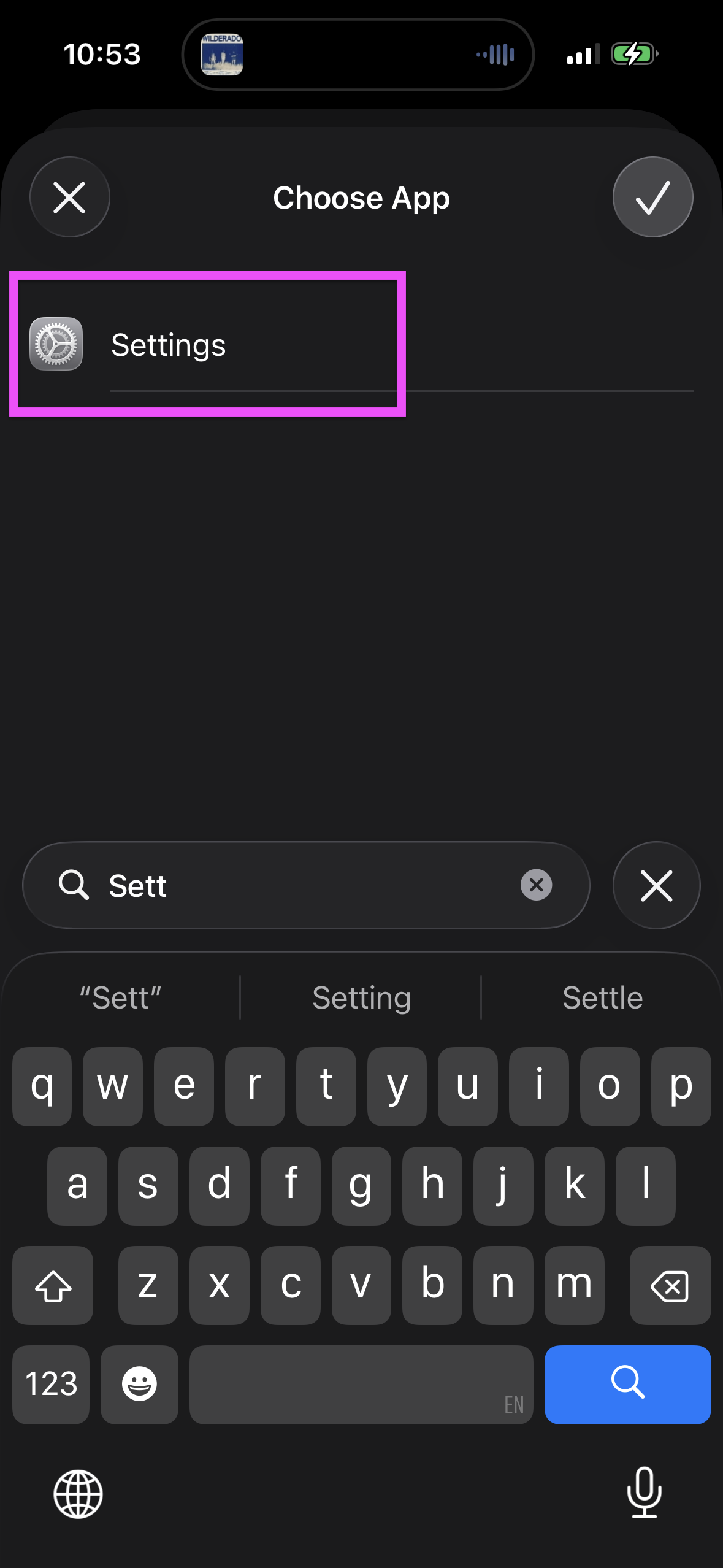
Choose the app you would like to Brick, most likely Settings - press Done after selecting the app and then Next
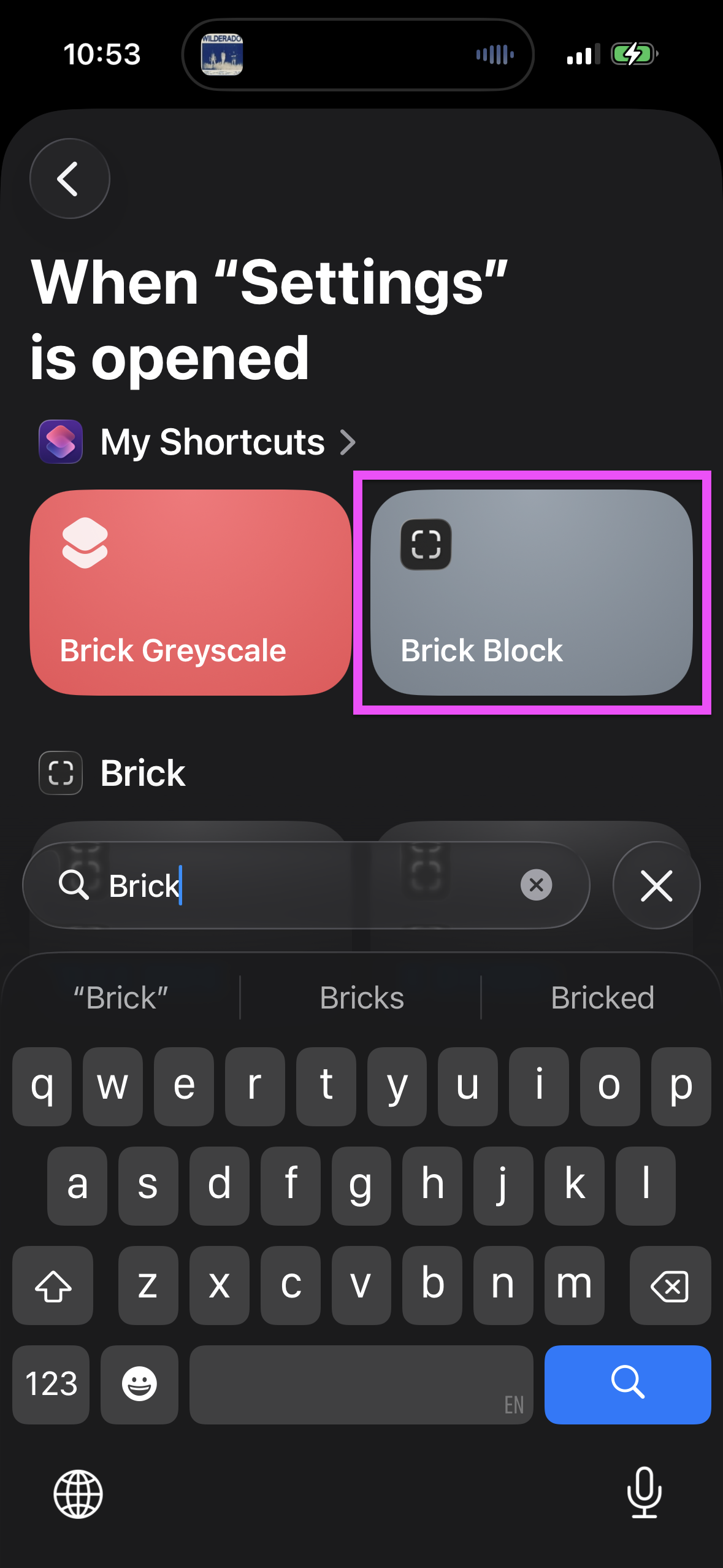
Search for Brick Block and select. Do not select 'New Blank Automation' (if not appearing, try downloading shortcut again using the link here)
Add the Shortcuts app to all of your Brick modes
You're good to go! Reach out to hello@getbrick.com if you're having any trouble